Windows 10 Support Just Ended—But Don't Panic. Here's What That Actually Means (And What to Do Next)
So, Windows 10 is officially dead. Well, sort of. As of October 14, 2025, Microsoft has pulled the plug on standard support for Windows 10. But before you start picturing your laptop spontaneously combusting or going dark, let's clear something up: your computer will still work. It's just going to get increasingly risky to keep using it without taking action. And here's the kicker—despite Windows 11 launching back in October 2021, a whopping 40% of Windows users worldwide are still running Windows 10. That's hundreds of millions of people who now need to figure out what to do next. If you're one of them, this guide is for you.
What Does "End of Support" Actually Mean?
Think of software support like a warranty on your car. When it expires, your car doesn't stop working—but if something breaks or a safety recall happens, you're on your own.
For Windows 10, "end of support" means:
- No more feature updates (new bells and whistles)
- No more security patches (fixes for newly discovered vulnerabilities)
- No more technical support from Microsoft
Your PC will boot up tomorrow morning just like it did yesterday. Your files are safe. Your programs still work. But every week that passes without security updates, your computer becomes a little more vulnerable to hackers, malware, viruses, and all the other digital nasties lurking out there.
And trust me, cybercriminals are absolutely salivating at the thought of millions of unpatched Windows 10 machines sitting out there like unlocked houses in a sketchy neighborhood.
Why Is Microsoft Doing This?
Windows 10 had a good run—actually, a great run. Released in July 2015, it became one of the most popular versions of Windows ever, peaking at over 82% of all Windows PCs in late 2021.
Microsoft even called it "the last version of Windows" at one point, committing to continuous free updates instead of charging for new versions every few years. They stuck to that promise for half a decade, releasing 12 major updates between 2015 and 2021.
But even "the last version of Windows" couldn't last forever. Enter Windows 11 in October 2021, with its centered taskbar, rounded corners, redesigned Start menu, and—here's the controversial part—much stricter hardware requirements.
Microsoft wants everyone on Windows 11 for security reasons (it has better built-in protections), but the problem is that millions of perfectly functional computers can't run it. And that's where things get messy.
The Windows 11 Upgrade Problem
Upgrading to Windows 11 is free—if your computer can handle it. That's a big "if."
To run Windows 11, your PC needs:
- 1 GHz or faster processor with at least two cores (64-bit)
- 4GB of RAM (minimum)
- 64GB of storage (minimum)
- DirectX 12-compatible graphics card
- TPM 2.0 (Trusted Platform Module—a security chip)
- UEFI firmware that supports Secure Boot
- 720p or higher display, at least 9 inches diagonally
Most of those requirements are pretty standard. The dealbreaker for many people is TPM 2.0. If your computer is more than four years old, there's a decent chance it doesn't have this security chip—or it's not enabled in your BIOS.
You can check if your PC is compatible using Microsoft's [PC Health Check tool](https://aka.ms/GetPCHealthCheckApp) or various third-party compatibility checkers from sites like Which?.
If your computer *does* meet the requirements, congrats! Just upgrade to Windows 11 for free and call it a day. Microsoft has made the process pretty straightforward through Windows Update.
But if your computer doesn't qualify—or if you just really don't want to deal with Windows 11 right now—you've got other options.
Option 1: Sign Up for Extended Security Updates (And Get Another Year Free)
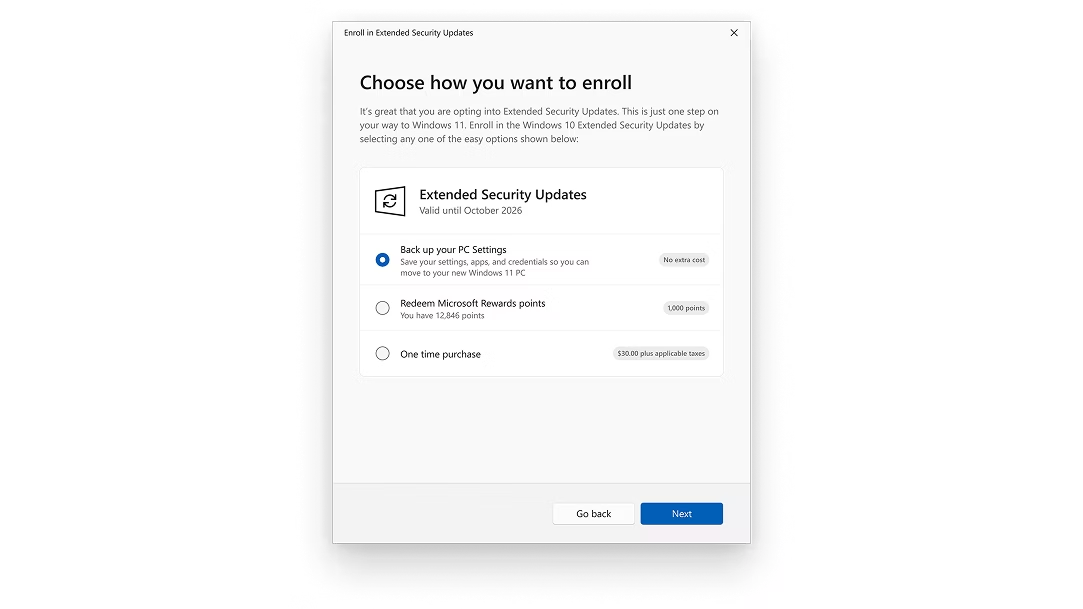
Here's the lifeline Microsoft is throwing to Windows 10 users: the **Extended Security Updates (ESU)** program.
This gives you **one more year** of critical security patches—until October 13, 2026. Your computer won't get new features or technical support, but it will get fixes for serious security vulnerabilities as they're discovered.
How to Sign Up (It's Actually Pretty Easy)
Step 1: Make sure your PC is updated to Windows 10 Version 22H2 with update KB5046613 (build 19045.5131 or later). Check by going to Settings > System > About.
Step 2: Sign in with an administrator account (usually the first account created on the computer).
Step 3: Go to Settings > Update & Security > Windows Update.
Step 4: Look for the "Enroll now" link under "Windows 10 support ends in October 2025."
Step 5: Choose your enrollment method:
Free options (for most users):
- Sync your PC settings to Microsoft OneDrive (backs up the first 5GB free—you can toggle off large folders like Videos to stay under the limit)
- Redeem 1,000 Microsoft Rewards points (if you've been collecting them)
Paid option:
- Pay $30 (one-time fee for the full year of updates)
If you're in Europe:
- Completely free, no strings attached. Thanks to the EU's Digital Markets Act, Microsoft had to remove the OneDrive and Rewards requirements for European users. Lucky you.
Once you're enrolled, you'll get a confirmation message, and you're set until October 2026. That gives you a full year to figure out your next move without your computer turning into a malware magnet.
The Catches (If You're in the US)
The "free" option does come with a couple of small compromises:
1. You'll need a Microsoft account. If you've been using a local Windows login to avoid Microsoft's cloud ecosystem, this pulls you back in. (Though honestly, if you use Office 365, OneDrive, Xbox, or any other Microsoft service, you probably already have one.)
2. OneDrive has a 5GB free limit. If you want to back up more than that, you'll need to pay for OneDrive storage. But you can just toggle off large folders (like Pictures and Videos) in Settings > OneDrive to stay under the free tier.
For most people, these aren't dealbreakers. But if you're privacy-conscious or just don't want to deal with Microsoft's cloud services, the $30 option might be worth it for peace of mind.
Option 2: Upgrade to Windows 11 Anyway (Even If Your PC "Doesn't Qualify")
Here's a little secret: it's still possible to install Windows 11 on unsupported PCs. Microsoft doesn't officially endorse this, but they haven't blocked it either.
Some users have had success tweaking BIOS settings (enabling TPM if it's present but disabled) or using registry hacks and workarounds to bypass the requirements. CNET and other tech sites have guides on how to do this.
The risks:
- Installing major yearly updates (like the upcoming 25H2) can be tricky on unsupported hardware.
- Microsoft could theoretically cut you off from updates in the future (though they haven't yet).
- You're technically violating the system requirements, so official support might not help if things break.
The upside:
- You get a fully functional Windows 11 system on hardware that "shouldn't" support it.
- Day-to-day experience is usually fine—most incompatible PCs run Windows 11 just as well as they ran Windows 10.
If you're moderately tech-savvy and willing to experiment, this could be a viable path.
Option 3: Switch to Linux (Free, Secure, and Surprisingly User-Friendly)

If your PC can't upgrade to Windows 11 and you don't want to pay for ESU or new hardware, there's another option: **Linux**.
Before you roll your eyes and mutter "too nerdy," hear me out. Modern Linux distributions like **Ubuntu** are shockingly easy to use—especially if most of what you do on your computer involves browsing the web, checking email, watching videos, and using office apps.
Pros:
- Completely free and open-source
- Regular security updates (Ubuntu gets five years of support)
- Lightweight—runs great on older hardware
- Familiar desktop layout (especially with Ubuntu or Linux Mint)
- Access to tons of free software (LibreOffice, GIMP, Firefox, VLC, etc.)
Cons:
- Not all Windows apps work on Linux (though many have Linux alternatives or can run through compatibility layers like Wine)
- Learning curve if you're used to Windows
- Gaming support is better than it used to be (thanks to Steam Deck/Proton), but still not 100%
How to try it:
- Download **Ubuntu** from [ubuntu.com](https://ubuntu.com)
- Follow the step-by-step installation guide (you'll need a USB flash drive)
- Back up your files first! Installing Linux will wipe your drive or make Windows files hard to access.
Alternatively, if you mostly use your computer for web browsing and cloud apps, **Google ChromeOS Flex** is another free option. It's lightweight, secure, and turns old PCs into Chromebook-like machines. Check if your model is supported at [chromeoslex.google.com](https://chromeoslex.google.com).
Option 4: Just Buy a New Computer
Sometimes the simplest answer is the right one. If your PC is old enough that it can't run Windows 11, it might be time for an upgrade anyway.
New Windows 11 PCs:
- Budget laptops start around $300–$400
- Mid-range laptops with solid specs: $600–$800
- Many retailers offer trade-in programs for old computers
Refurbished Windows 11 machines:
- Available from retailers like Currys, Back Market, and manufacturers like Dell
- Often significantly cheaper than new
- Come with warranties
Alternatives:
- MacBook or Mac Mini (if you're open to switching ecosystems)
- Chromebook (if most of your work is web-based)
Yeah, it's an expense. But if your computer is struggling anyway, getting a new one with modern specs, better security, and years of support ahead might be worth it.
What Happens If You Do Nothing?
Let's be real: plenty of people are going to ignore all of this and just keep using Windows 10 indefinitely.
Your computer will still work. For a while, you might not notice any difference. But here's what you're risking:
- Increased vulnerability to malware, viruses, and ransomware as new security holes are discovered and never patched.
- Data theft if hackers exploit unpatched vulnerabilities.
- Identity theft and scams targeting outdated systems.
- Compatibility issues as software and websites stop supporting Windows 10.
Cybercriminals specifically target outdated systems with known vulnerabilities. With hundreds of millions of Windows 10 machines going unpatched, you can bet they're already planning attacks.
Is it guaranteed your computer will get hacked tomorrow? No. But it's like leaving your front door unlocked in a bad neighborhood—maybe nothing happens, or maybe you come home to find everything gone.
The Bottom Line: You've Got Options (And Time)
Windows 10 support ending isn't the end of the world. You've got choices:
✅ Upgrade to Windows 11 for free (if your PC is compatible)—this is the easiest and safest option.
✅ Sign up for Extended Security Updates (free with OneDrive sync or $30 otherwise)—this buys you another year to figure things out.
✅ Install Windows 11 on unsupported hardware (with workarounds)—risky but possible.
✅ Switch to Linux or ChromeOS Flex (free and secure)—great for older hardware if you're willing to learn something new.
✅ Buy a new PC (Windows, Mac, or Chromebook)—sometimes starting fresh is the right move.
The worst thing you can do is nothing. Don't let your computer become a sitting duck for hackers just because dealing with change is annoying.
Take 20 minutes this week to check your options, sign up for ESU if you need it, and make a plan. Your future self (and your bank account, and your personal data) will thank you.