iOS 26: How to Turn Off Liquid Glass (Spoiler: You Can't, But Here's What You Can Do)
Let me just cut to the chase: you can't actually turn off Liquid Glass in iOS 26. I know, I know—that's probably not what you wanted to hear. But before you throw your iPhone across the room, there's a longer answer that might help.
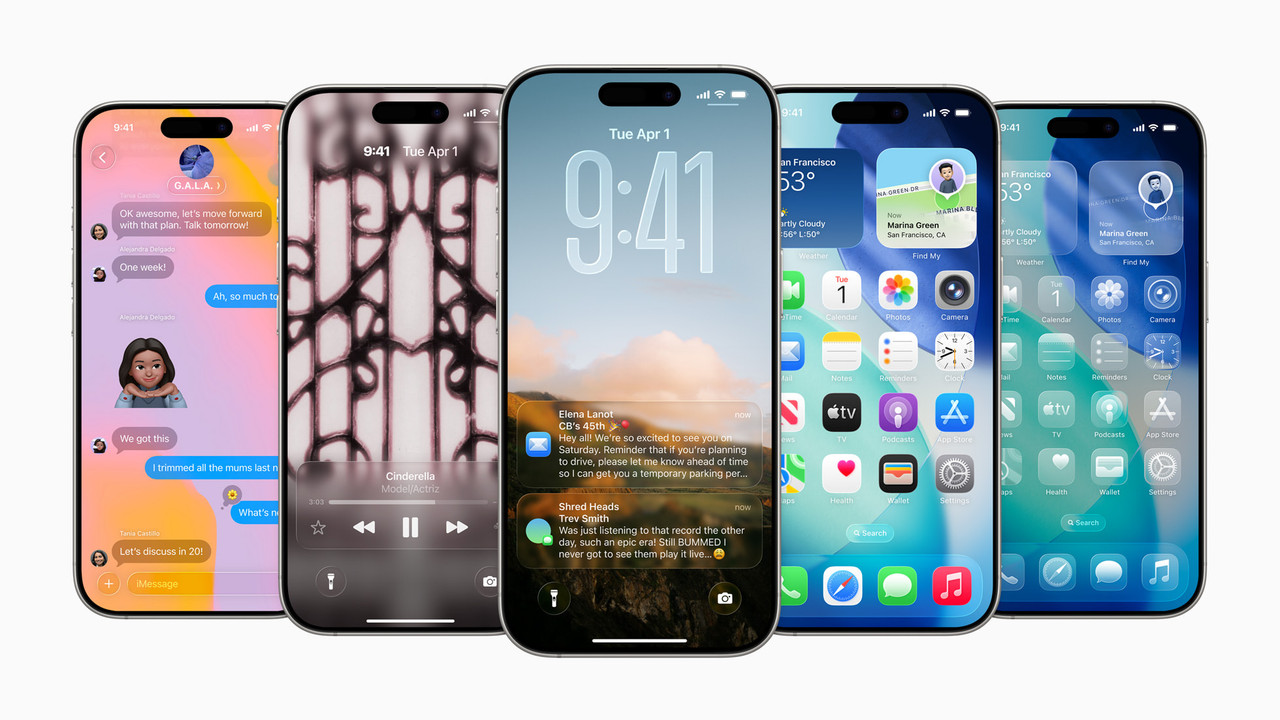
Apple's iOS 26 dropped on September 15th, and it brought with it the company's biggest visual overhaul since iOS 7 back in 2013—or arguably since the iPhone X, depending on who you ask. The star (or villain, depending on your perspective) of this redesign is something Apple calls "Liquid Glass."
If you've upgraded and immediately regretted how everything looks, here's the reality check: you can't roll back to iOS 18. That ship has sailed. And if you were hoping for a simple toggle to make Liquid Glass disappear? Yeah, Apple didn't include that either.
But here's what you can do: dive into your accessibility settings and tone down the transparent, glossy effect to make it way less in-your-face. It won't completely eliminate the design, but it can make your iPhone feel a lot more usable.
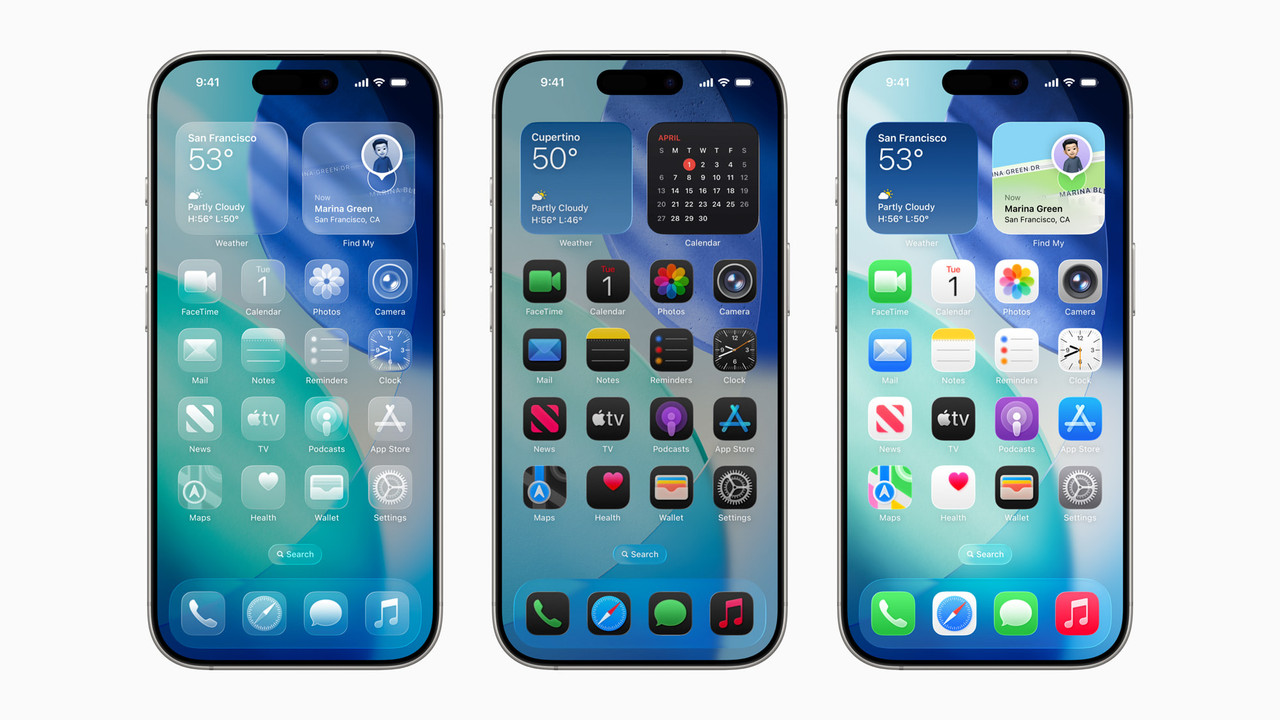
What Exactly Is Liquid Glass?
Before we get into the fixes, let's talk about what we're dealing with here.
Liquid Glass is Apple's new visual design language that makes menus and interface elements look translucent and glossy. Things squish and wiggle when you interact with them. Folders, Control Center, notifications—pretty much everything has this see-through, fluid quality to it.
Some people think it looks futuristic and cool. Others find it distracting, hard to read, or just plain annoying. Even here at various tech publications, opinions are all over the place. Some reviewers love it, some are underwhelmed, and others are somewhere in the "meh" zone.
The design is polarizing, no doubt about it. And if you're in the "hate it" camp, you're definitely not alone.
The Problem with Liquid Glass
Here's the thing: while the aesthetic might look sleek in Apple's promotional videos, real-world use is a different story.
Legibility Issues
The transparency can make text harder to read, especially when you're trying to quickly glance at your Control Center or open a folder. The background bleeds through, and suddenly you're squinting at your phone trying to figure out what you're looking at.
Visual Clutter
When everything is translucent and reflective, it can feel visually overwhelming. Your wallpaper, the icons, the overlays—it all starts competing for attention, and nothing really stands out the way it should.
Performance Hiccups
Some users have reported that the fancy animations and transparency effects can cause slight performance issues, especially on older devices. Nothing dramatic, but enough to be noticeable if you're paying attention.
How to Reduce Liquid Glass Transparency
Okay, so you can't turn it off completely. But you can significantly reduce its impact. Here's how:
Step 1: Use Reduce Transparency
This is your main weapon against Liquid Glass overload.
- Open Settings
- Tap Accessibility
- Tap Display & Text Size
- Toggle on Reduce Transparency
That's it. This single change will make folders, menus, Control Center, and the Messages app appear way more solid and opaque. The glossy, see-through effect gets dramatically reduced, and everything becomes easier to read.
I tried this myself, and honestly? It's a game-changer if you're struggling with the new design. Things just look clearer and more straightforward.
Step 2: Increase Contrast (Optional)
While you're in the Display & Text Size menu, you might also want to try toggling on Increase Contrast.
This adds white outlines to various Liquid Glass elements, helping them stand out more against your background. It's not for everyone—some people find it makes things look a bit too stark—but it's worth trying to see if you like it.
Fair warning though: If you're using the Clear app icon option (where icons blend more with your wallpaper), enabling Reduce Transparency and Increase Contrast kind of defeats the purpose. Those settings make the icons way more prominent, which goes against the whole minimalist vibe of Clear icons.
Customizing Your Home Screen
Beyond accessibility settings, you can also tweak your home screen appearance to minimize the Liquid Glass effect. Here's how:
- Long-press an empty area on your home screen until the icons start jiggling
- Tap Edit in the top-left corner
- Select Customize
- Switch your screen style to Tinted
- Adjust the colors of your icons and folders to match your preference
The Tinted option gives you more control over how your home screen looks and feels. You can dial down the intensity of the colors and make things appear more muted and cohesive, which helps counteract some of the visual chaos that Liquid Glass can create.
It's not a complete solution, but combined with Reduce Transparency, it can make your iPhone feel a lot more comfortable to use.
What Apple Changed During Beta
To give Apple some credit, they did listen to feedback during the iOS 26 beta period. The initial developer beta had an even more intense version of Liquid Glass, and people were not happy about the legibility issues.
Apple responded by adding more of a frosted look to some elements, making them slightly more opaque and easier to read. So the version we got in the final release is actually toned down from what it could have been.
But clearly, it wasn't enough for everyone. The fact that so many people are searching for ways to turn it off or reduce it tells you everything you need to know about how divisive this design is.
Why Can't We Just Turn It Off?
This is the million-dollar question, right? Why doesn't Apple just give us a toggle to disable Liquid Glass completely?
The simple answer is: because it's core to their design vision for iOS 26. This isn't just a feature you can switch on or off—it's baked into the entire operating system's visual language.
Apple has always been pretty opinionated about design. They believe their choices make for a better user experience, and they're generally reluctant to give users too many customization options that might dilute their vision.
Sometimes that works out great. Other times... well, you get situations like this where a significant chunk of users wish they had more control.
The Bigger Picture: iOS Design Philosophy
This whole Liquid Glass situation is part of a larger pattern in how Apple approaches iOS design.
Think back to iOS 7 in 2013, when Apple first introduced the flat, translucent design language that replaced the skeuomorphic look of earlier iOS versions. People were divided then too. Some loved the fresh, modern aesthetic. Others hated losing the tactile, realistic interface elements they were used to.
Sound familiar?
Apple tends to make bold design decisions and stick with them, even when there's pushback. They believe in their vision and trust that users will adapt over time. And to be fair, most people eventually did get used to the iOS 7 redesign, even if they didn't love it at first.
The question is whether Liquid Glass will follow the same trajectory, or if it'll remain contentious enough that Apple makes more significant changes in future updates.
Performance Considerations
Beyond aesthetics, there's also the practical matter of how Liquid Glass affects your iPhone's performance.
All those transparency effects, animations, and real-time rendering do require processing power. On newer iPhones like the iPhone 17 series, you probably won't notice much difference. But if you're running iOS 26 on an older device, you might see:
- Slightly slower animations
- Occasional stuttering when opening folders or Control Center
- Marginally worse battery life
Enabling Reduce Transparency can actually help with these issues too, not just visibility. When your iPhone doesn't have to constantly render those transparent, glossy effects, it can dedicate resources elsewhere.
So if your phone feels a bit sluggish after the iOS 26 update, toggling on Reduce Transparency might give you a small performance boost as a bonus.
Other iOS 26 Features Worth Knowing About
While we're talking about iOS 26, it's worth mentioning that Liquid Glass isn't the only change. The update actually brought some genuinely useful features:
Call and Text Screening
You can now screen calls and texts from unknown numbers, with your iPhone providing transcripts in real-time so you can decide whether to answer.
New Ringtones
Apple added a bunch of new ringtones and alert sounds. Not groundbreaking, but nice to have fresh options.
Enhanced Privacy Controls
More granular controls over app permissions and tracking.
Improved Widgets
Widgets got some love with better interactivity and more size options.
So even if you're not thrilled about Liquid Glass, there's plenty of other stuff in iOS 26 that might make the update worthwhile overall.
My Honest Take
Look, I get why Apple went this direction. Liquid Glass does look modern and fresh, at least in controlled environments like their marketing materials. And I appreciate that they're willing to take risks and push the design forward rather than just playing it safe.
But I also completely understand the frustration. Not everyone wants their phone's interface to be a design statement. Some people just want clarity, simplicity, and ease of use. And Liquid Glass can work against those goals, especially in bright sunlight or when you're trying to quickly check something.
The fact that Apple at least included Reduce Transparency as an option shows they knew this would be an issue for some users. I just wish they'd gone further and given us more granular control—maybe a slider to adjust transparency levels, or the ability to apply the effect only to certain elements.
That said, after using Reduce Transparency for a while, I can tell you it makes a huge difference. It doesn't completely eliminate the Liquid Glass aesthetic, but it makes iOS 26 way more practical and usable. Combined with the home screen customization options, you can get your iPhone to a place that feels pretty comfortable, even if it's not exactly what you want.
What to Do If You Really Hate It
If you've tried all these tweaks and still can't stand iOS 26, you do have a few options:
Wait for iOS 26.1
Apple typically releases point updates that address user feedback and bugs. There's a chance they might add more customization options or further refine the Liquid Glass design based on user reactions.
Provide Feedback
Use Apple's Feedback app or website to let them know you want more control over the design. If enough people complain, Apple does sometimes listen and make changes.
Consider Your Next Upgrade Carefully
If Liquid Glass really bothers you and Apple doesn't change course, it might influence your decision about future iPhone purchases. Though honestly, by the time you're ready to upgrade, iOS will probably look completely different anyway.
Live with the Tweaks
Seriously, give Reduce Transparency a real shot for a week or two. You might find that with that setting enabled, iOS 26 is perfectly fine. Our eyes and brains are pretty adaptable.
Bottom Line
So here's the reality: you can't turn off Liquid Glass in iOS 26. It's part of the package, like it or not.
But you can reduce its transparency significantly, increase contrast, and customize your home screen in ways that make the design way more tolerable. For most people who find Liquid Glass overwhelming, these tweaks will be enough to make iOS 26 feel usable and even pleasant.
Is it ideal? No. Apple should give users more control over how their devices look and feel, especially when it comes to such a major visual overhaul. But within the constraints we're working with, these accessibility settings can make a real difference.
Give it a shot. Head into Settings > Accessibility > Display & Text Size, toggle on Reduce Transparency, and see how it feels. You might be surprised at how much better everything looks.
And hey, if you still hate it after trying everything? At least you'll know you gave it your best shot. Sometimes that's all you can do with iOS updates—adapt, adjust, and hope the next one is more to your liking.
What's your take on Liquid Glass? Love it, hate it, or somewhere in between? Either way, at least now you know how to make it less intrusive.